Home Screen
Directly after logging in, you'll arrive at the AI-Public home screen.
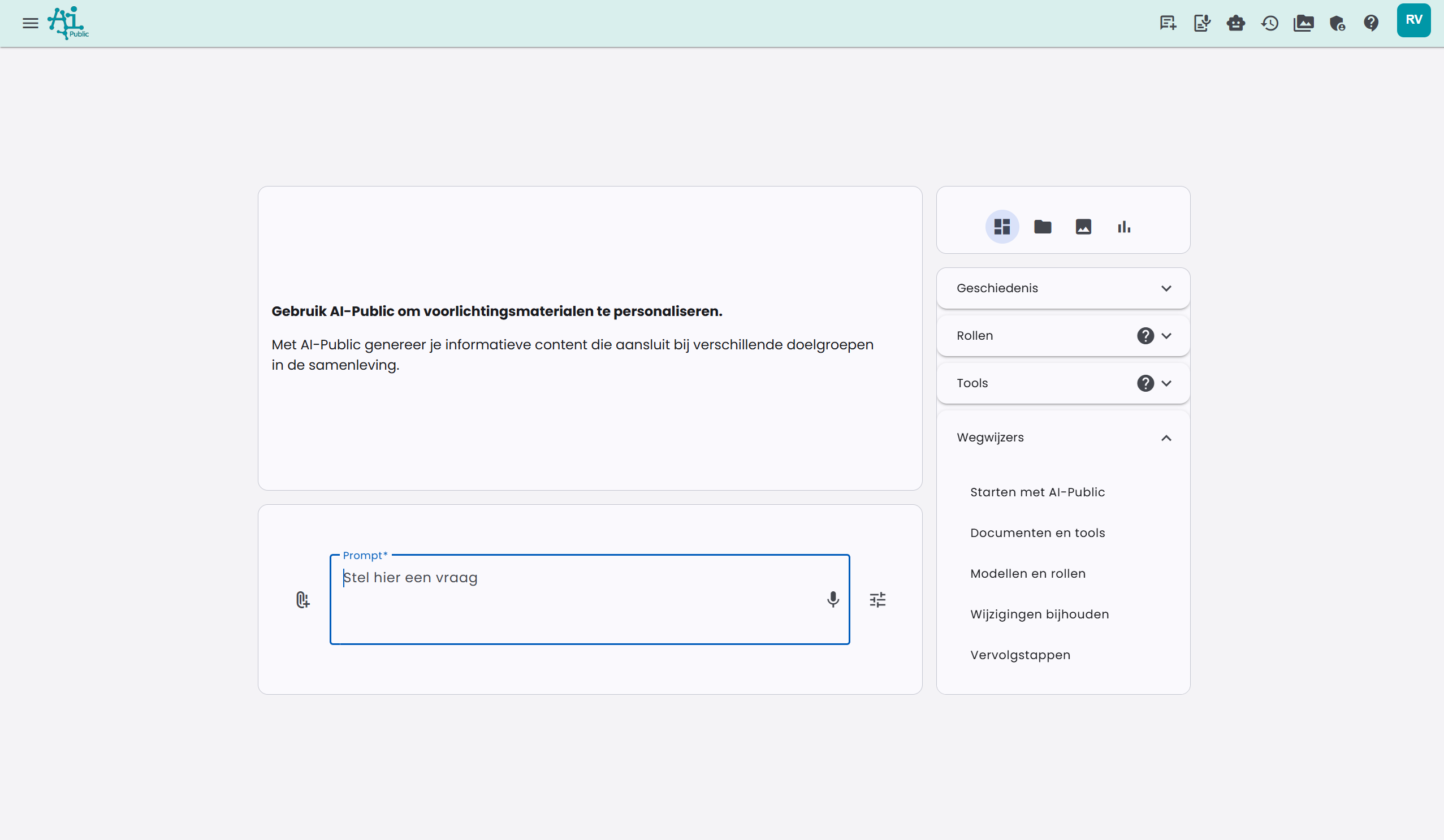
The dashboard is clearly organized into two columns:
Left column:
- At the top, a tile with the latest news (after first login) or a helpful tip
- Below that, the tile with the prompt (question) bar
Right column:
- A tile with tabs you can switch between:
- Useful links (default): Here you'll find History, Personal assistants, Tools and Guides
- Updates: Recent updates about the application and your environment
- Files: The files you can chat with
- Images: The images you have generated
- Statistics: The number of chat messages and images for the current month
Under Updates, you will see the latest updates that are relevant to you. From there, you can click through directly to the full message on the news page.
The Prompt
At the bottom of the screen is a large input field. Here you can ask a question, or the 'Prompt'. Many articles, videos, and even books have been written about "Prompt Engineering". This refers to formulating the right question to get the best possible answer from the language model.
Getting a good answer depends on the chosen language model and the prompt.
The chosen language model: AI-Public offers language models from the central model catalog. The administrator decides per provider whether users see cost-effective models, high-quality models or a combination. Fast models are useful for everyday questions; stronger models are better for complex analysis, long documents and careful reasoning.
The prompt: learning how to prompt is a very important skill in the modern work environment. If you learn to guide the language model well, you can get much better and more relevant results for your work.
Continuing the Chat
You can then continue chatting with the language model. The message history is maintained. This allows you to 'continue' chatting without having to repeat what you said in previous questions, which is efficient for ongoing projects or analyses.
You can also ask questions about using AI-Public itself in a regular chat. For example: "Where do I configure tools?", "How do I upload a document?" or "How does the mobile app work?". The AI can search relevant information from the manual in the background and use it to give a practical answer.
Unique feature of AI-Public
Switching Language Model
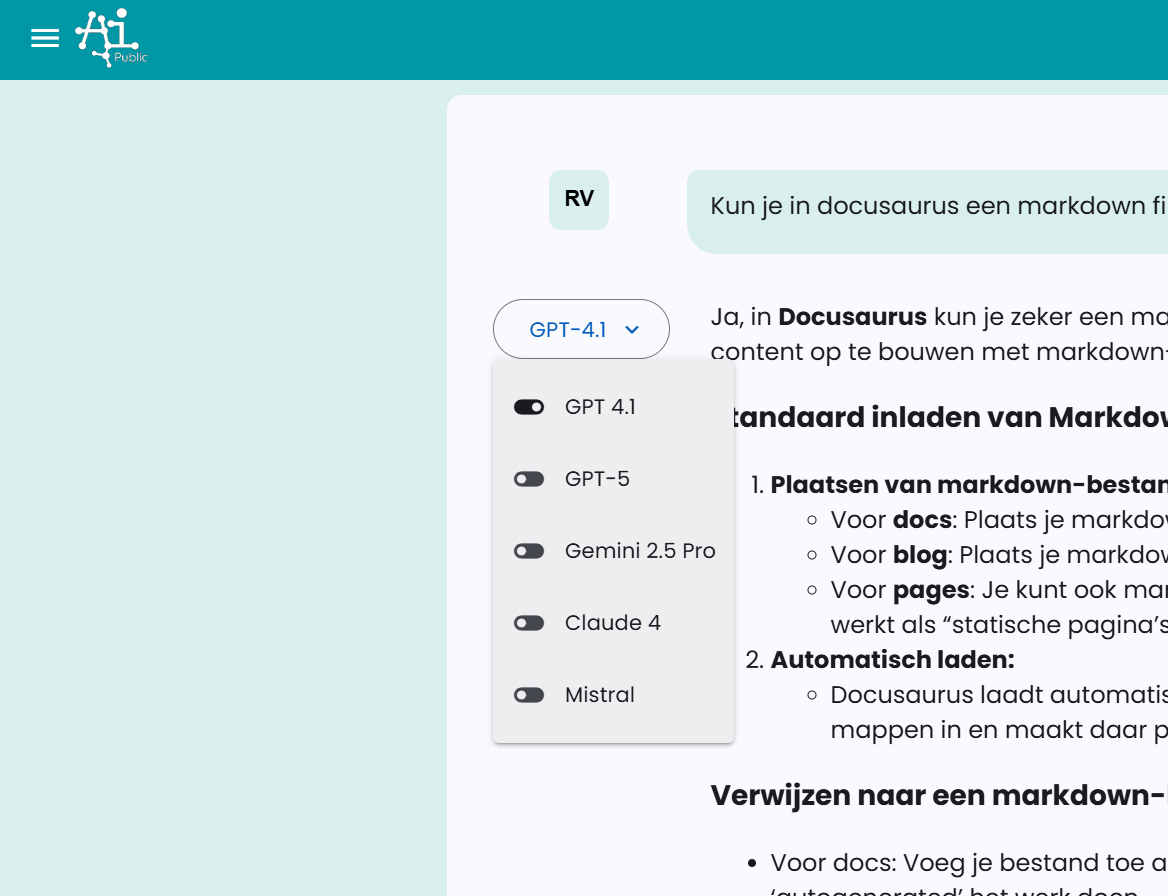
AI-Public has a unique feature: the ability to switch between language models. We offer different language models, each with their strengths and weaknesses. This allows you to discover which model works best for your specific tasks. You can also have a favorite model for different applications. You switch to another language model by clicking on the language model selection button to the left of the answer.
Copying or Regenerating an Answer
Next to the answer, there are two buttons on the right. With the left button, you can copy the answer. With the right button, you can have the answer regenerated by the same language model. This can be useful if you want to give the model a second chance to deliver a better result.
Generating Images
Generating images in AI-Public works via the "Create Image" tool. This tool can have different states:
- On: AI-Public will try to generate an image based on your prompt.
- Off: No images will be generated, even if your prompt requests one.
- Auto: AI-Public analyzes your prompt. If the prompt explicitly or implicitly asks for an image, the tool will try to create one.
You can manage the status of the "Create Image" tool and other tools in your preferences or via the tool settings in the interface. When an image is generated, you can typically choose from different text-to-image models, although the selection may vary.
For more detailed information about tool usage and settings, see the article about Tools.
Chat with Documents
You must first choose a suitable language model, for example a model from the current central catalog with enough context capacity.
You can read more about document chat in the related article.
Personal Assistants
AI-Public offers the ability to set personal assistants. A personal assistant could be, for example: 'Marketing Content Creator', 'Legal Assistant for Contract Analysis', or 'HR Support for Policy Questions'.
You give the personal assistant a name and then set the initial prompt and system prompt that belong to the personal assistant.
In addition to text-based assistants, you can also create voice chat assistants. These assistants are specifically designed for spoken interactions and can be used for voice-to-voice communication.
The initial prompt is literally the first question you ask in the chat. This field can also be left empty.
The system prompt works in the background to guide the AI's behavior, and you can use this to provide useful background information (context). For example, to give instructions about tone-of-voice, specific company guidelines, or to provide background information about a project.
You can read more about personal assistants in the related article.
Tools
AI-Public has various tools that the AI assistant can use to help you with specific tasks. These tools expand the AI's capabilities with external functions such as:
- Create Images: Generate illustrations or visuals for presentations and reports.
- Internet Search: Find current information online and chat with internet sources.
- Image Search: Search for relevant images for projects or documentation.
- Data Analysis (example): Assist in interpreting datasets (depending on model and integration).
- Weather Request: Get current weather information for logistics planning or events.
- AI Content Check: Detect if text is AI-generated, useful for originality checks.
The AI automatically decides when tools are used, but you can also manually adjust these settings in your preferences or specify them per chat.
You can read more about tools in the related article.
